
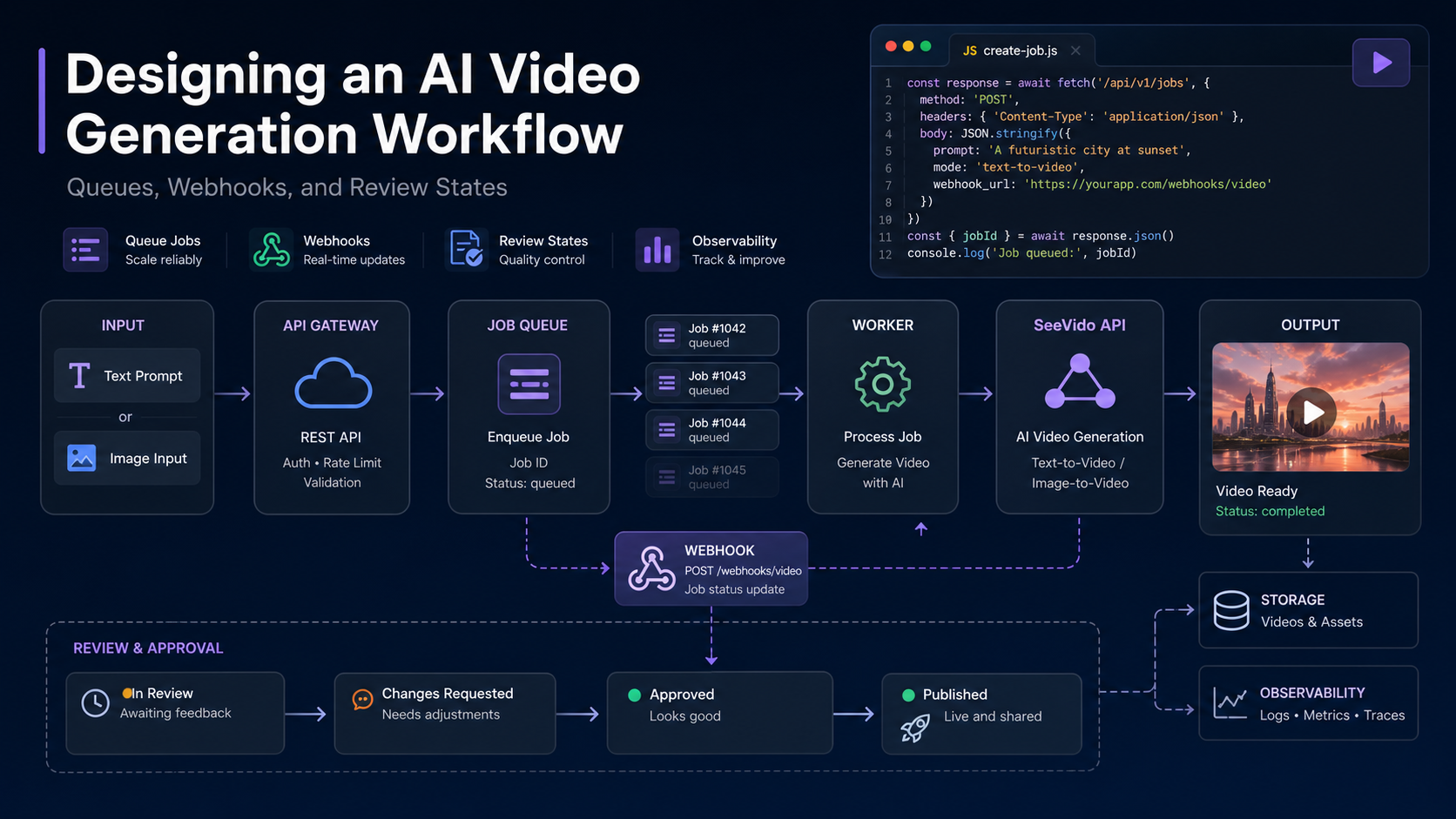

AI video prompts fail most often for a simple reason: they describe the style but not the job. A prompt like "make this product cinematic" sounds creative, but it gives the model too much room to change the subject, add unwanted text, or create motion that looks impressive but does not help the viewer.
This guide is written for PromptZone readers who want reusable prompt patterns, not a generic tool review. I will use SeeVido AI as an example of an AI video workflow that supports text-to-video and image-to-video creation, but the prompt framework can be adapted to other video generators as well.
The Core Formula
Use this structure when writing AI video prompts:
Subject + action + camera movement + setting + lighting + style + stability constraints + avoid list
The last two parts are the most important for product and marketing videos. They tell the model what should stay consistent and what should not appear.
Template 1: Product Image to Short Video
Use this when you already have a product photo, poster, package image, or visual asset.
Animate the uploaded image into a short product video.

Camera: slow push-in with subtle parallax.
Motion: gentle background movement only.
Lighting: soft studio lighting, natural shadows.
Style: clean premium product teaser.
Keep stable: product shape, color, label, logo, packaging, and main composition.
Avoid: extra text, new objects, distorted label, fast camera shake, unrealistic deformation.
Format: short social video, clean composition.
Why it works: the prompt tells the model that the uploaded image is the anchor. The creative motion supports the product instead of reinventing it.
Template 2: Text to Video for a Campaign Concept
Use this when you do not have a source image yet and want to explore a visual direction.
Create a short campaign concept video.

Subject: [describe product, object, or scene].
Action: [describe what happens over time].
Camera: [slow orbit / push-in / tracking shot / static frame].
Setting: [studio / desk / street / home / outdoor].
Lighting: [soft morning light / dramatic side light / clean studio light].
Mood: [calm / energetic / editorial / playful / premium].
Avoid: unreadable text, extra hands, distorted faces, exaggerated effects, brand-inaccurate objects.
This template is better for brainstorming because it gives the model room to create. For final product content, move to image-to-video once you have a strong still image.
Template 3: Blog Post to Video Teaser
This is useful when you want to turn a written article into a short visual clip.
Create a short video teaser based on this article idea:
[paste one-sentence article summary]

Visual metaphor: [describe a simple visual scene].
Motion: slow, clear, easy to follow.
Camera: gentle push-in or static composition with small movement.
Tone: informative, calm, useful.
Keep simple: one main subject, minimal background motion.
Avoid: clutter, fake screenshots, unreadable text, dramatic effects, misleading footage.
The important step is to summarize the article first. Do not paste a full article and expect the video model to decide what matters.
A Prompt Matrix for Testing Variations
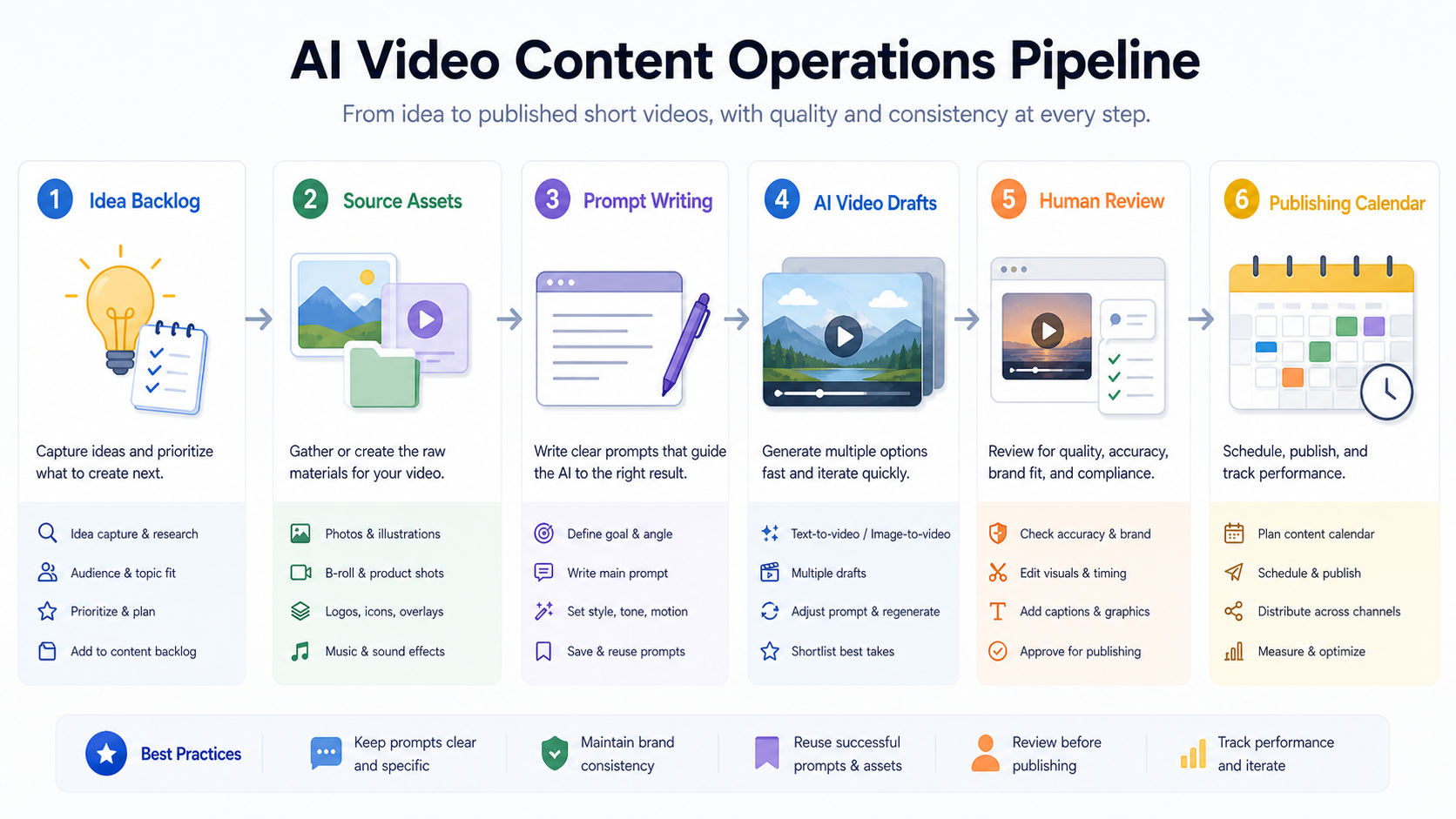
Instead of generating ten random clips, test small variations.
| Variable | Version A | Version B | Version C |
|---|---|---|---|
| Camera | Slow push-in | Gentle orbit | Static with background motion |
| Lighting | Soft studio | Morning light | Warm interior |
| Motion | Minimal | Moderate | Background only |
| Mood | Clean | Editorial | Playful |
Change one or two variables at a time. If every version changes everything, you will not know what improved the result.
Negative Prompt Blocks
Use avoid lists as reusable blocks.
Product Accuracy Block
Avoid changing product shape, color, label, logo, packaging, proportions, or material texture.
Text Safety Block
Avoid adding new text, fake letters, unreadable signs, distorted labels, or random symbols.
Motion Control Block
Avoid fast camera shake, sudden zooms, unrealistic object bending, flicker, or unstable subject movement.
People and Likeness Block
Avoid changing facial identity, adding extra people, distorting hands, or creating realistic footage of real people without permission.
You do not need every block in every prompt. Choose the block that matches the risk.
Review Criteria After Generation
A generated clip should be evaluated against the prompt, not just against taste.
Check:
- Did the subject remain stable?
- Did the requested motion happen?
- Did any unwanted text appear?
- Did the clip add objects or claims?
- Is the video suitable for the intended channel?
- Does it need an AI-generated disclosure?
- Would a viewer misunderstand it as real footage?
This review step matters whether the clip was made in SeeVido or another AI video tool.
Example: Turning a Product Photo Into a Teaser
Start with this plain prompt:
Make this product image into a cinematic video.
Now improve it:
Animate the uploaded product image into a short social video.

Camera: slow push-in from a stable front angle.
Motion: subtle background movement and soft light shift.
Lighting: clean studio light with natural shadows.
Style: minimal premium product teaser.
Keep stable: product shape, color, label, logo, and packaging.
Avoid: new text, extra objects, distorted label, fast motion, unrealistic deformation.
The improved version is less flashy, but it is more useful. It protects the product while still allowing motion.
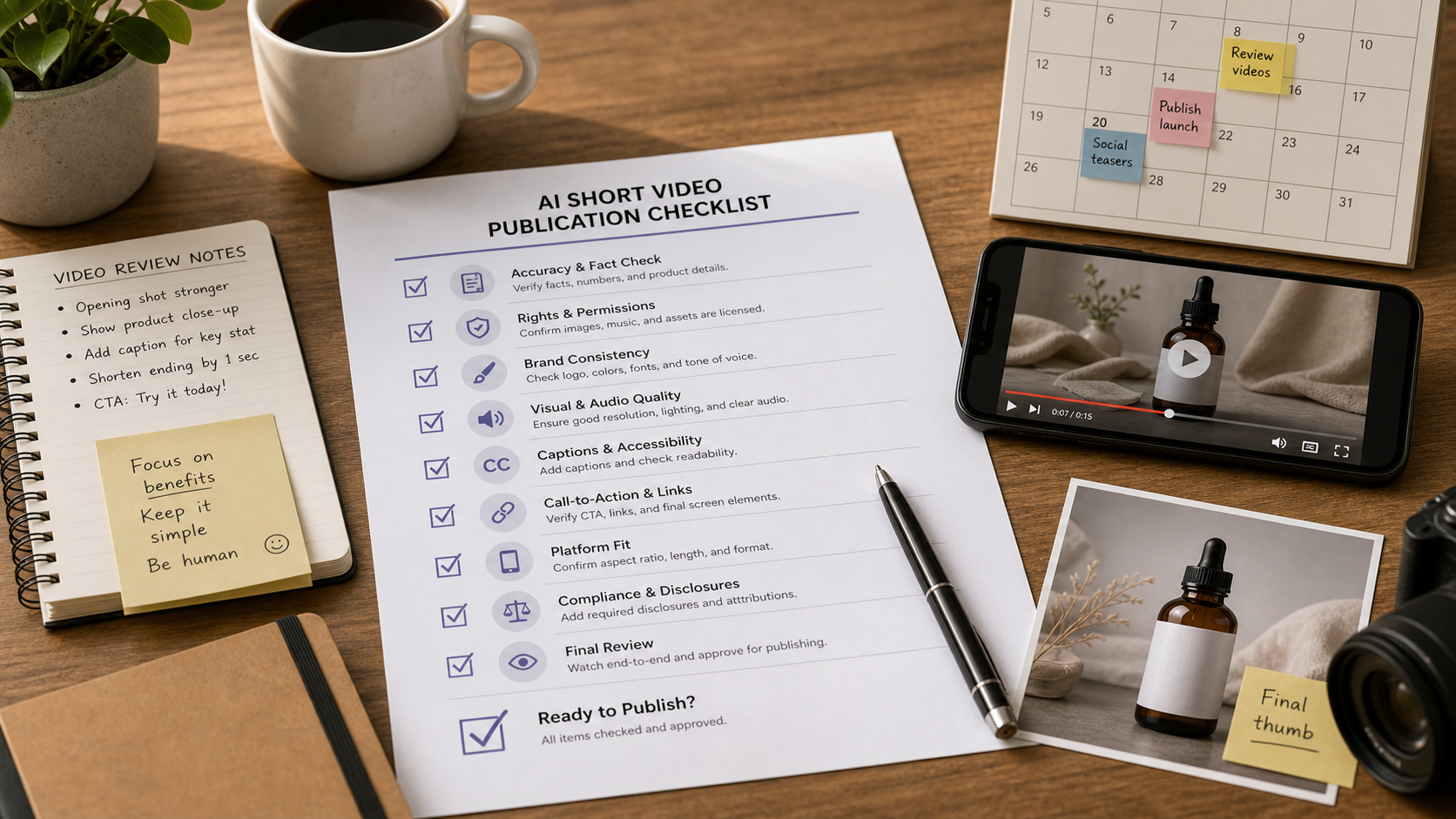
Final Prompt Checklist
Before submitting a prompt, ask:
- Did I define the subject?
- Did I describe motion over time?
- Did I choose a camera movement?
- Did I specify lighting or setting?
- Did I say what must stay stable?
- Did I include an avoid list?
- Did I define the intended use?
If the answer is no, the prompt is probably too vague.
Conclusion
Better AI videos usually come from better constraints, not longer prompts. A strong prompt gives the model a clear subject, a motion plan, and boundaries that protect the final result.
For PromptZone readers, the best habit is to build prompt blocks you can reuse: one for product stability, one for motion control, one for text safety, and one for review. Tools like SeeVido can help generate the clip, but the prompt system is what makes the workflow repeatable.





Top comments (0)